
Free 2D Animation Software: How to Make Your First Animation
You do not need to draw to start animating. We explain frames, keyframes, puppets and lip sync, walk through your first animation step by step with free 2D animation software, and list what to check when choosing a program.
Short Answer
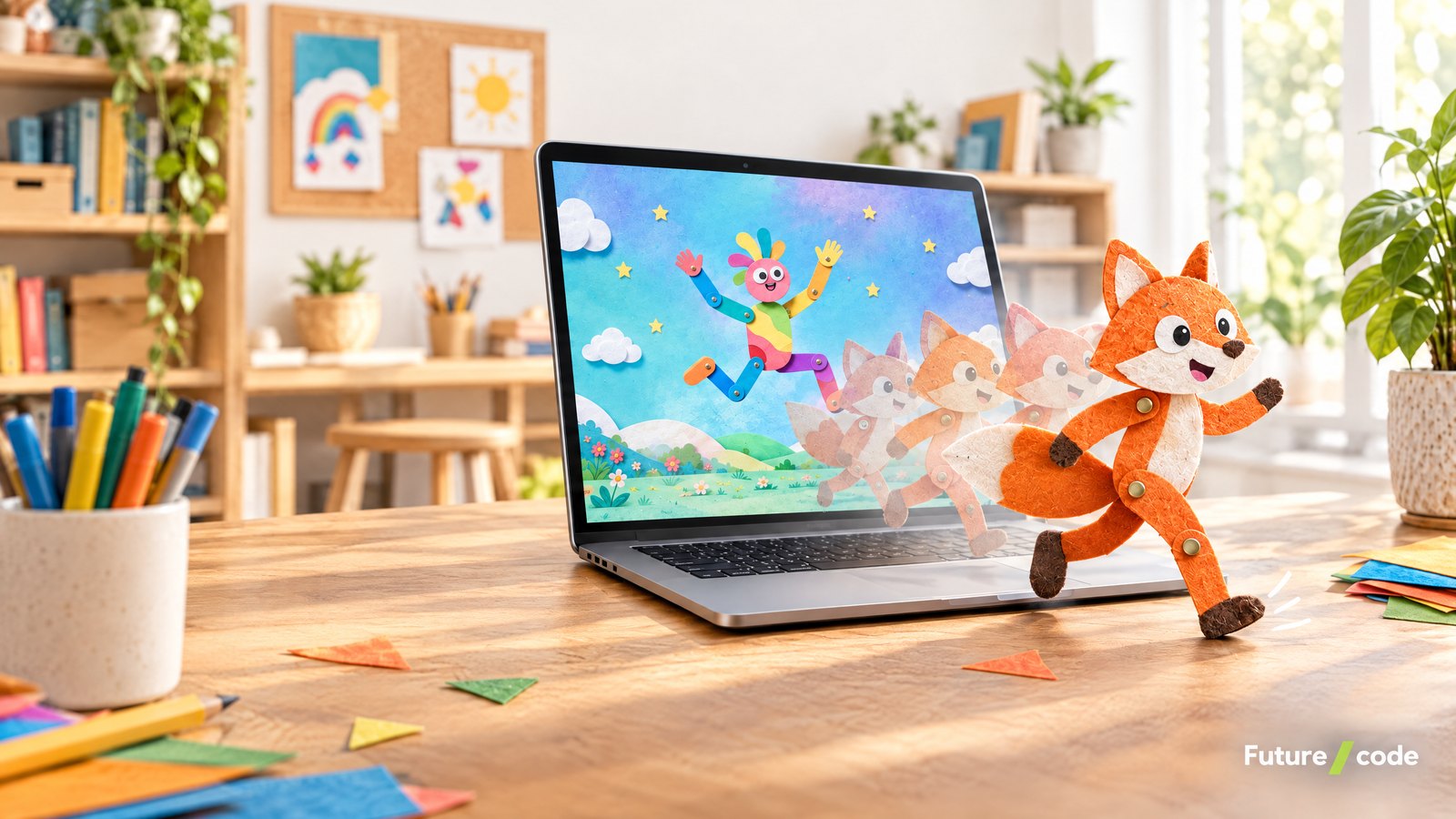
With free 2D animation software, you do not need to be able to draw to make your first animation on a computer: you pick a ready-made character (a puppet), give it motion, set the timing with keyframes, add your voice and export the video. Onion skinning and layers help if you want to draw frame by frame; ready-made motions and automatic lip sync help if you want quick results. Jointo, developed by Futurecode, is a free creative studio for Mac and Windows that opens up felt-puppet animation to people who are not designers.
Animation Basics: 5 Concepts to Know First
Whatever software you use, making an animation comes down to a handful of concepts. Knowing them makes any program’s menus much easier to understand.
1. Frames and frame rate
Animation is a sequence of still images (frames) shown one after another. The number of frames shown per second is the frame rate (fps). 24 frames per second is a common standard in film, and in 2D animation it is also common to hold each drawing for two frames. A higher frame rate gives smoother motion, but if you draw frame by frame it also means more work.
2. Keyframes and in-betweens
A keyframe marks an important moment in a movement: arm down, arm up. The software calculates the frames in between; this is called in-betweening or tweening. Easing curves decide how a movement speeds up and slows down. Nothing in real life starts and stops at a constant speed, so movements that ease in and ease out look far more natural.
3. Puppets and rigs
In puppet animation, a character is not a single drawing but a set of jointed parts: body, arms, legs, head. The structure that links these parts is the rig, and its joints are bones. With inverse kinematics (IK), you pull the hand and the elbow and shoulder follow at the right angles. Once a rig is built, you can move the character in every scene without redrawing it.
4. Lip sync
Matching a talking character’s mouth to the audio is called lip sync. Done by hand, it means choosing a mouth shape for every syllable, one of the most time-consuming jobs in animation. Some software opens and closes the mouth automatically from a voice recording and takes most of that work off your hands.
5. Onion skinning
When drawing frame by frame, onion skinning shows faint versions of the previous and next frames on the canvas. It shows you where the next drawing should go and is an essential tool for frame-by-frame work.
Frame-by-Frame or Puppet Animation?
There are two main routes in 2D animation. In frame-by-frame (traditional) animation you redraw every frame, or every few frames. The result can be very expressive, but it is labour-intensive and needs drawing skills. In puppet (rig-based) animation you prepare the character once and then move its parts. It is a fast, reusable method for explainer videos, promo clips, social media content and storytelling.
For beginners, the most productive path is usually to start with puppet animation to get comfortable with timing, keyframes and easing, then build drawing skills with short frame-by-frame experiments. You can also combine both in one project: a puppet character walks while a hand-drawn effect plays in the background.
Your First Animation, Step by Step
These steps walk you through a first animation of a few seconds in Jointo. The same logic applies in other programs.
- Download the app: Get the Windows (10 and 11, 64-bit) or Mac (Apple Silicon or Intel) version from the Jointo product page. If Windows shows “Windows protected your PC”, click “More info” and then “Run anyway”; the installer is not yet signed by Microsoft, so the warning is expected.
- Write a tiny script: One sentence is enough: “The character walks in from the left, stops in the middle, waves and says hello.” A short, single-scene idea is something you can actually finish on your first try.
- Pick your character: Choose a ready-rigged felt puppet or build your own in the character creator.
- Make it walk: Draw a path on the stage and let the character walk along it. Ready-made motions such as walk, run, jump, dance and wave apply in one click.
- Fine-tune with keyframes: Put a keyframe at the wave, shorten or lengthen the movement and smooth it with an easing curve. Puppets, camera and layers have separate tracks, so changing one does not break the others.
- Make it talk: Say “hello” into the microphone; the puppet’s mouth moves with your voice automatically.
- Dress the scene: Choose a day, night or sunset mood and, if you like, add an effect such as confetti, snow or camera shake. The scene is eight times wider than the canvas, so the camera can follow your character on its own.
- Add music and titles: In the video editor, add titles, lower thirds, captions and music, and trim or split clips if needed.
- Export: Export as MP4, GIF or transparent PNG in TikTok, Reels, Shorts or YouTube ratios. You can also upload straight to YouTube or share a link with a QR code.
Want to try animating with your body? Move in front of the camera and the puppet copies you. In Jointo, pose detection runs on the device; the camera image is never recorded or sent anywhere.

What to Look for in 2D Animation Software
When you look for free animation software, check whether it fits what you want to make, not just the price. The table lists general criteria and how Jointo covers each one.
| Criterion | What to check | In Jointo |
|---|---|---|
| Platform | Does it run on your operating system? | Windows 10/11 (64-bit), Mac (Apple Silicon and Intel, macOS 11 or later); Android (Google Play); iPhone and iPad version on the way |
| Free plan limits | Watermarks, export or storage restrictions? | Free to use; the free plan has watermarked exports, 3 share links, 1 GB cloud storage and 90-day share retention |
| Ease of learning | Are there ready-made characters and motions? | Ready felt puppets, a character creator, one-click walk, run, dance, wave and jump |
| Frame-by-frame drawing | Onion skinning and layers? | Yes |
| Bones and IK | Can you add bones to your own drawing and pose it? | Yes: add bones to your own drawing and pose with IK |
| Keyframes and curves | Separate tracks and easing curves? | Separate tracks for puppets, camera and layers; easing curves |
| Lip sync | Manual or automatic? | Speak into the microphone and the mouth moves automatically |
| Sound and editing | Do you need separate tools for music, voice-over and editing? | Music, voice-over, titles, captions and clip editing built in |
| Export | Which formats and aspect ratios? | MP4, GIF, transparent PNG; TikTok, Reels, Shorts and YouTube ratios |
| Interface language | Is your language supported? | English, Turkish, German, French and Spanish |
| Classroom use | Classes, assignments and submissions? | Yes: students join with a code, no account or e-mail needed |
| Privacy | Where does camera or audio data go? | Pose detection runs on the device; the image is not recorded or uploaded |
Practical Tips for Beginners
- Start short: Keep your first project between 5 and 10 seconds. A finished short piece teaches more than an unfinished long one.
- Timing first: Before colour and detail, focus on when each movement starts and ends. A simple, well-timed movement looks better than a detailed, badly timed one.
- Exaggerate: Movements that are a little bigger than in real life read more clearly in animation.
- Add sound early: If there is dialogue or music, timing the animation to the audio is easier than fitting the audio to the animation later.
- Save and export often: Exporting drafts and watching them on your phone is the fastest way to spot problems.
Limits to Know
- Watermark on the free plan: Videos exported with the free version of Jointo carry a watermark. Watermark-free export, more share links and more cloud storage come with a Jointo Pro subscription; prices and trial terms are shown in the mobile store.
- Mobile versions: The Mac, Windows and Android (Google Play) versions are available now; the iPhone and iPad version is on the way.
- Visual style: Jointo’s ready-made characters have a felt-puppet look. If you want a different style, add bones to your own drawing and build your own character.
- Studio pipelines: Large TV or film productions run on specialised tools tied to the studio’s own pipeline. Jointo is designed for non-designers, educators, content creators and small businesses.
Futurecode and Jointo
Jointo is developed by Futurecode, our software team in Ankara, Turkey. Alongside animation it brings 3D scenes, presentations, documents, PDF editing, a sound studio and classrooms into one app, and the desktop app can connect to AI assistants such as Claude over MCP (we explain the idea in What Are AI Agents?). To try it for free, visit the Jointo page. For another of our free tools, see separate virtual desktops per monitor on Windows 11. If you are planning animated content for your brand, our content strategy team can help; for anything else, get in touch.
For new guides and product news, follow Futurecode on LinkedIn.
Frequently Asked Questions
Do I need to be able to draw to make animations?
No. With puppet animation you can start from ready-made characters and give them motion. Drawing skills help when you want to animate frame by frame or design your own characters.
Is Jointo really free?
Yes, Jointo is free to use. Exports from the free version carry a watermark. Jointo Pro, a monthly or yearly subscription bought in the mobile stores, adds watermark-free export, more share links, more cloud storage and longer share retention.
Do I need a powerful computer to animate?
Simple 2D animation runs on most current computers. Jointo needs Windows 10 or 11 (64-bit) or macOS 11 or later; full system requirements are in the Jointo installation guide.
Which formats can I export to?
In Jointo you can export MP4, GIF or transparent PNG, in TikTok, Reels, Shorts and YouTube ratios.
Can children and students use it?
Yes. Jointo has ready-made puppets and one-click motion, with no ads. Teachers can open a class, and students join with a code and a nickname, without an account or e-mail address.
How does lip sync work?
Done by hand, you choose a mouth shape for each syllable. In Jointo, you speak into the microphone and the puppet’s mouth opens and closes with your voice automatically.