
ScreenSpaces: Every screen, its own spaces.
ScreenSpaces gives every monitor its own workspaces on Windows. Switch spaces on the screen under your cursor and the other screens stay exactly as they are — the way multiple displays work on a Mac.
Version 0.5.0 · Windows 10 (2004+) and 11, 64-bit · 44 MB
By downloading and installing you accept the End User Licence Agreement.
Why ScreenSpaces? Windows switches every screen at once.
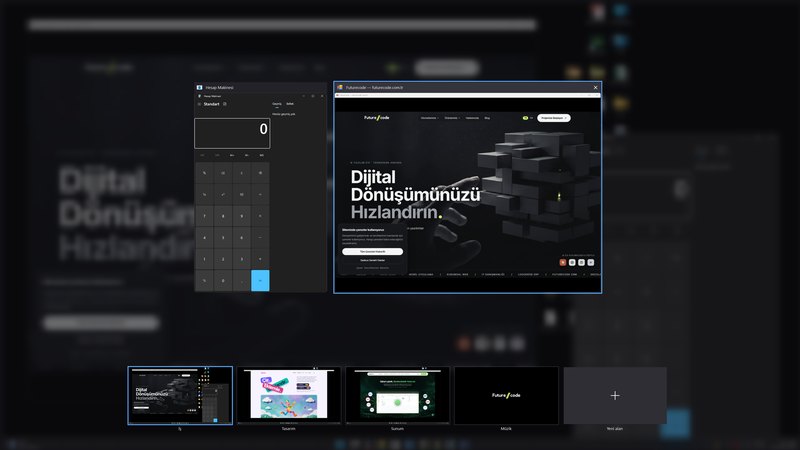
Windows virtual desktops change all of your monitors together: you move to another desktop for a document and the chat, music and dashboard on your other screens disappear too. ScreenSpaces keeps a separate set of spaces for each monitor, so only the screen you are working on changes.
Read the guide: separate virtual desktops per monitor in Windows 11
What does it do? Quietly, from the system tray.
Your own Win+Tab
Press Win+Tab (or click the tray icon) and every screen opens its own overview: live previews of that screen’s windows above, its spaces with their last look below. Click to jump, drag a window onto a space to move it, add a space with “+”.
Named spaces with previews
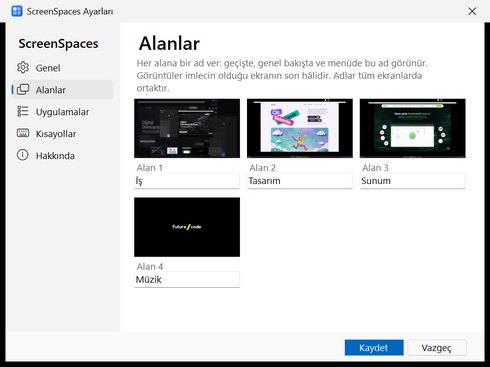
Call your spaces Work, Design or Music. Names appear in the overview and the menu, and each space shows how you left it.
Apps that know where they belong
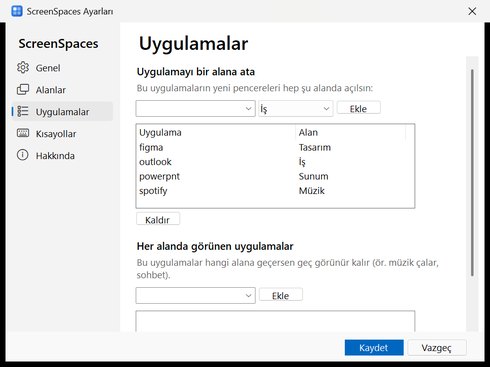
Assign an app to a space and its new windows always open there. Pin a music player or chat so it stays visible on every space.
Shortcuts and mouse buttons
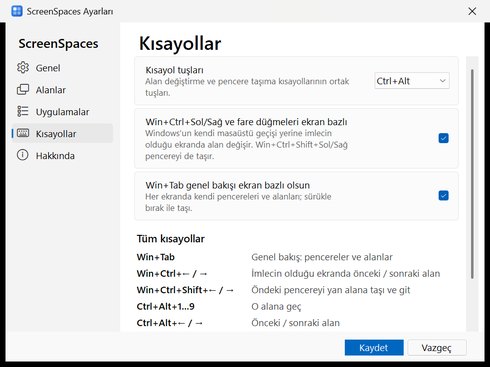
Win+Ctrl+Left/Right — and the side buttons of mice that send it — switch only the screen under the cursor. Win+Ctrl+Shift+Left/Right carries the front window along.
Silent hero
Starts with Windows and sits in the tray. No pop-ups, no notifications; you only notice it when you use it.
Smooth slide
Spaces slide in like on a Mac, only on the screen you are switching.
Layout survives restarts
After an update or a restart of the app, every window goes back to its own space.
Notifications take you there
Click a notification from a window on another space and ScreenSpaces switches to that space.
One-click rescue
Lost a window? “Show all windows” in the tray menu brings everything back.
Private by design
No internet connection, no account, no telemetry. Previews stay in memory only.

Installation Two minutes, no administrator rights.
Download
Download the ZIP file above and open it.
Run
Double-click ScreenSpaces.exe. If Windows shows “Windows protected your PC”, choose “More info” → “Run anyway” (the preview build is not code-signed yet).
Done
ScreenSpaces installs itself for your user account, adds itself to the Start menu and appears in the system tray next to the clock. It starts with Windows from now on — you can delete the download.
Try it
Press Win+Tab, or Win+Ctrl+Right on any screen. Right-click the tray icon for the menu and Settings.
To uninstall: Settings → Apps → Installed apps → ScreenSpaces → Uninstall. All hidden windows come back and the settings are removed.
System requirements
- Operating system
- Windows 11, Windows 10 version 2004 or later (64-bit)
- Permissions
- Standard user; administrator rights are not needed
- Disk
- About 50 MB; .NET is included, nothing else to install
- Languages
- Turkish, English
- Version
- 0.5.0 (preview)
- SHA-256
4fbe8ba0f58f6816b517effbc83831a50cf192bd5db0e0942f52a74cfa3a48f7
Privacy and licence
ScreenSpaces does not connect to the internet and does not collect, process or send personal data. Settings and the window layout stay on your computer; space previews are kept in memory only and are never written to disk. The preview is free for personal and commercial use and is provided “as is”.
Windows is a registered trademark of Microsoft Corporation in the United States and/or other countries. ScreenSpaces is not affiliated with, endorsed or sponsored by Microsoft.
ScreenSpaces — frequently asked questions
Is ScreenSpaces free?
How is it different from Windows virtual desktops?
Why does Windows show a SmartScreen warning?
Does it send my screen or data anywhere?
A window disappeared — what do I do?
Can it manage windows opened as administrator?
How do I uninstall it?

Give every screen its own spaces
Free preview for Windows 10 and 11. Questions and feedback: info@futurecode.com.tr