Fixed Asset Tracking: Moving from Spreadsheets to QR Codes
Still tracking assets in a spreadsheet? A practical guide to numbering, labelling, counting and moving step by step to QR-based asset tracking software.

Short Answer
Fixed asset tracking means keeping one record of every physical asset your organisation owns, such as laptops, phones, vehicles, tools and furniture, showing where it is, who holds it and what condition it is in. It rests on three habits: a unique number and label on every asset, a record of every handover and return, and a regular physical count. A spreadsheet can work for a handful of items; as assets and staff grow, fixed asset tracking software with QR labels keeps each record and its history in one place.
What Fixed Asset Tracking Covers
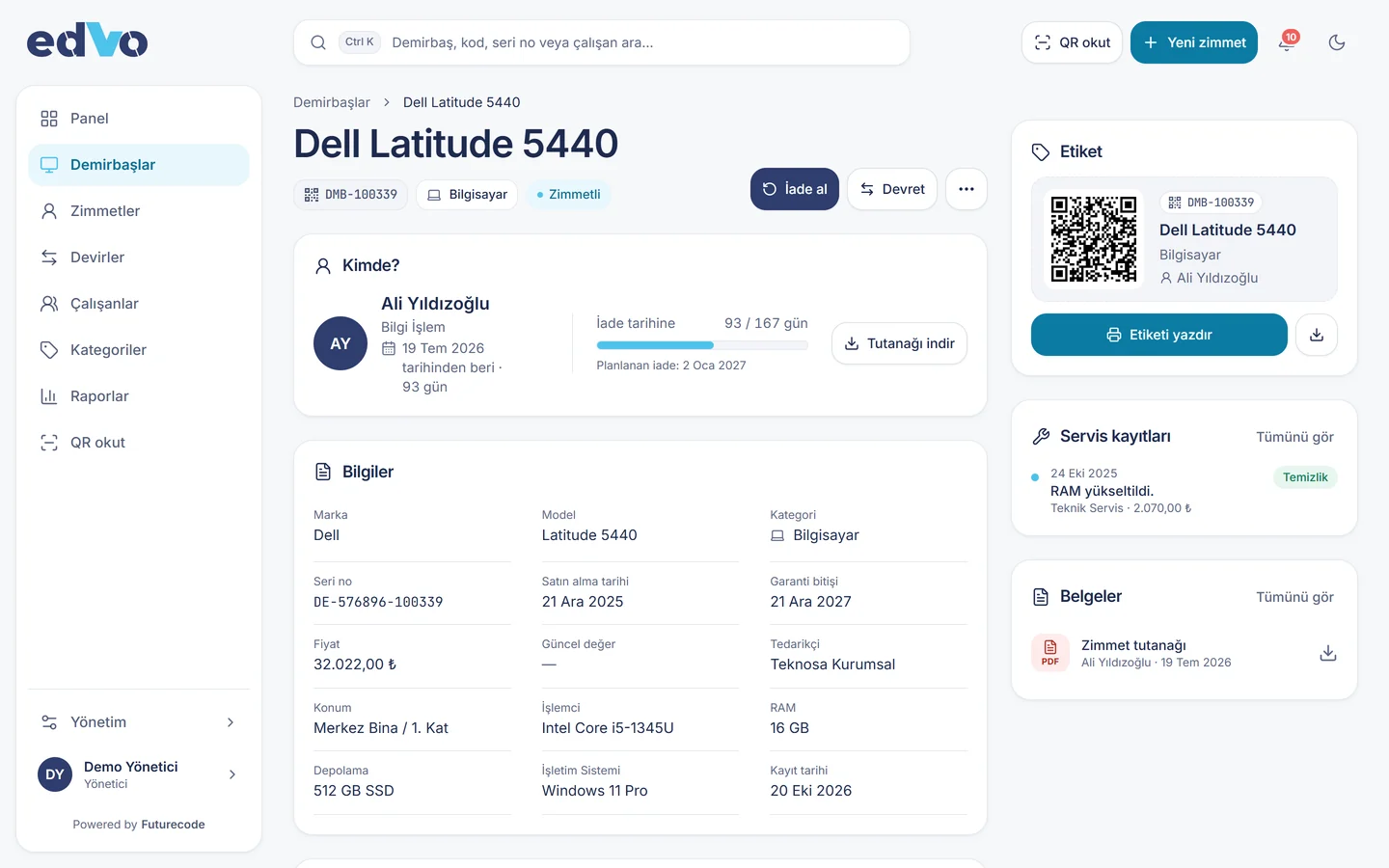
Finance teams think of fixed assets as long-lived items on the balance sheet. Operations teams ask a simpler question: “Who has this laptop right now?” Good asset tracking answers both, and usually records:
- Identity: asset number, category, make, model and serial number; IMEI for phones, registration plate for vehicles.
- Purchase details: purchase date, price, supplier, warranty end date.
- Location and custodian: which site, which floor, which employee.
- Movement history: who received it and when, who returned it, who it was transferred to.
- Condition and maintenance: intact, damaged or lost; service and repair work carried out.
When finance holds part of this, HR another part and IT a third, nobody has the full picture. The point of tracking is to bring those pieces into one record.
Where Spreadsheets Fall Short
Most organisations start with a spreadsheet, and that is a sensible first step: it costs nothing and everyone knows how to use it. The problems appear as the list grows:
- One row, one moment: a row shows where an asset is today, not who had it last month or how often it changed hands. Keeping history means duplicating rows or adding sheets, and the file gets messy quickly.
- Several copies: IT has one file, HR has another, and a third version lives in someone’s inbox. Nobody is sure which is current.
- Who changed what? Tracing when a cell was edited, and by whom, is hard. A bad paste or an accidental delete can go unnoticed.
- Documents live elsewhere: signed handover forms sit in a shared drive, disconnected from the row they belong to.
- No access on the floor: during a count, finding the record for the device in your hand means walking back to a desk or carrying a printout.
- No reminders: when a loaned device is overdue, nobody is alerted unless someone filters the sheet.
None of this makes spreadsheets bad. A spreadsheet is a calculation tool, not a system of record. Once you pass a few dozen assets and more than one person is editing, asset tracking software usually pays for the effort of switching.
Numbering and Labelling Your Assets
Whatever tool you use, tracking starts with a unique number for each asset. Assign it once and never reuse it, even after the asset is retired.
Choosing a numbering scheme
- Keep it short and fixed-length: a prefix plus a sequence (for example DMB-100339) is easy to read, type and search.
- Do not encode things that change: if the department or floor is baked into the number, the number becomes wrong the moment the asset moves. Keep location and custodian as fields on the record.
- Store category as a field: computer, phone, vehicle and so on belong in their own field, which makes filtering and reporting simple.
Label types
Plain printed numbers have to be read and typed by hand. Barcodes need a scanner. Asset tracking with QR codes works with any smartphone camera, which makes it the most practical option on the floor. Use durable label stock and place it where it is easy to see but not constantly rubbed: the underside of a laptop, the back of a monitor, inside a vehicle door.
How to Run a Physical Asset Count
A physical count compares what your records say with what is actually there. An annual count is common; larger organisations often count one area at a time through the year. A simple count runs like this:
- Set the scope: which site, floor or department, and which categories.
- Pull the current list: assets in that area and who they are assigned to.
- Check on site: read each label, open the record and confirm location, holder and condition.
- Separate the differences: missing items, items found but not on record, and items whose condition has changed.
- Correct and report: investigate the gaps, update the records and write up the result.
With a spreadsheet, step three is the slow one: finding the device in a long list. With QR labels, scanning with a phone opens the asset’s record directly, including who holds it and its history.
Moving from Spreadsheets to QR Codes, Step by Step
Switching does not have to be a big project. Your existing spreadsheet is a good starting point. The steps below use Futurecode’s EDVO asset and assignment tracking as the example; the logic carries over to other systems.
- Clean the current list: remove duplicate rows, fill in missing serial numbers and merge inconsistent category names (“Laptop”, “Notebook”, “Portable”). Make sure every asset has a number.
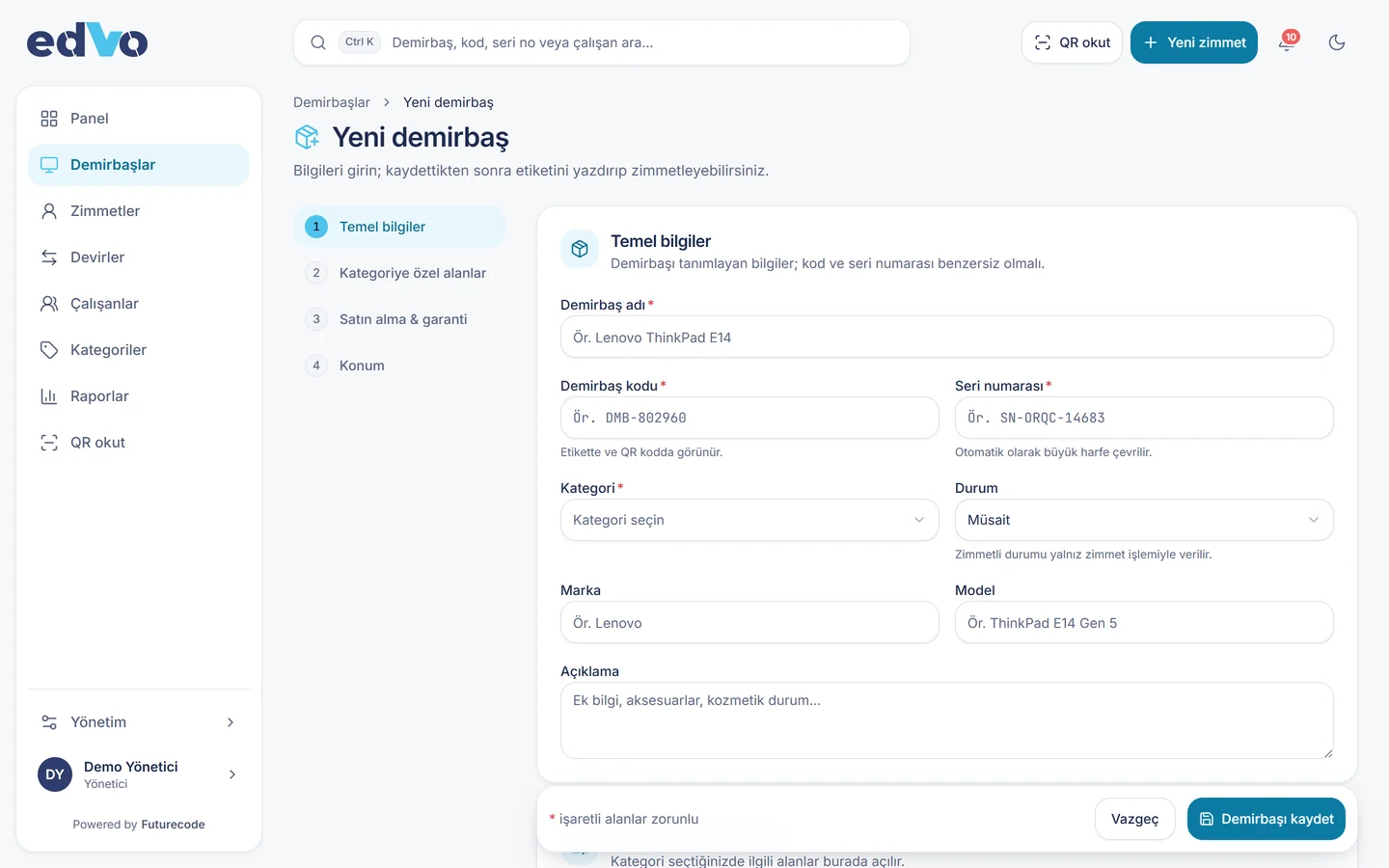
- Define categories and fields: decide what to record per category, such as serial number for computers, IMEI for phones and plate for vehicles. EDVO lets each category carry its own fields.
- Bulk import: bring the cleaned list in from Excel instead of retyping every asset.
- Print and apply labels: the system generates a QR label for each asset. Labelling one area at a time doubles as your first count.
- Enter current assignments: record who holds what, the handover date and any planned return date, and attach the signed forms.
- Set roles: decide who can create and edit records and who can only view. EDVO has administrator, asset officer and employee roles; employees see only their own items.
- Retire the spreadsheet: after the cut-over date, record changes only in the system. Running both in parallel creates new inconsistencies fast. When you need a report, export it to Excel.
Comparison: Spreadsheet vs Asset Tracking Software
| Topic | Spreadsheet | QR-based asset tracking software |
|---|---|---|
| Upfront cost | None beyond existing office software | Software and label costs |
| Asset history | Only if kept by hand, often incomplete | Every assignment, return and transfer stays on record |
| Lookup on the floor | Search at a desk | Scan the QR with a phone |
| Signed handover forms | Stored separately | Attached to the assignment |
| Overdue returns | Found by filtering | Shown in reports and alerts |
| Who changed what | Hard to trace | Changes go to an audit log |
| Access | Anyone with the file sees everything | Role-based; employees see only their own items |
| Good fit when | Few assets, one person keeps the list | Many assets, several teams and employees |
Limits Worth Knowing
- Software does not replace discipline: any tracking system is only as accurate as what goes into it. Recording handovers as they happen is a habit; software makes it easier, not automatic.
- Labels wear out: on devices that travel, labels can become unreadable. Replace worn ones during each count.
- Accounting is a separate job: depreciation and tax records stay in your accounting system and with your accountant. Asset tracking software manages physical custody and responsibility, not the books.
- The first clean-up takes time: fixing the existing spreadsheet and the first round of labelling are usually the longest steps. Doing it area by area keeps it manageable.
Asset Tracking with Futurecode
Futurecode is a software company based in Ankara, Turkey. EDVO is our web application for asset and assignment tracking. Assets are registered with category-specific fields, QR labels are generated by the system, and existing lists can be bulk-imported from Excel. Assignments, bulk returns (intact, lost, damaged) and transfers between employees are logged, and signed forms are attached. QR codes are scanned from the phone’s browser, with no app to install. Reports show who holds what, overdue returns, category distribution, utilisation and cost, and export to Excel.
EDVO runs in the cloud or on your own server and is designed for companies, municipalities and public bodies with 20–2000 staff. If your process needs something a ready product cannot do, we also offer custom software development. For help choosing a deployment model, see our article on cloud vs on-premise software. To see a demo, get in touch.
For new guides and product news, follow Futurecode on LinkedIn.
Frequently Asked Questions
Can I track fixed assets in Excel?
Yes, for a small number of assets with one person maintaining the list. As assets and staff grow, keeping history, linking documents and checking items on the floor become hard, and dedicated software saves time.
How should asset numbers be structured?
A common approach is a short prefix plus a sequence number, fixed in length and never reused. Keep changeable details such as location or department out of the number and store them as fields.
QR codes or barcodes?
Both carry the asset number. Barcodes usually need a scanner; QR codes can be read by any smartphone camera, which is more practical for counts and spot checks.
How often should we count our assets?
An annual full count is common. Larger organisations often spread the count across the year, one area at a time. Check any statutory requirements with your accountant.
Can we import our existing spreadsheet?
EDVO supports bulk import from Excel. Cleaning the list first (duplicates, inconsistent categories, missing serial numbers) makes the move faster.
Can employees see the equipment assigned to them?
In EDVO, yes. Users with the employee role see only their own items; creating and editing records is reserved for administrators and asset officers.